
GPT Image 2: Prompt Guide and Use Cases in 2026
We tested GPT Image 2 across 5 creative scenarios. Inside: ready-to-use prompts, what to look for in the renders, and how to push the model further on text, layout and consistency.
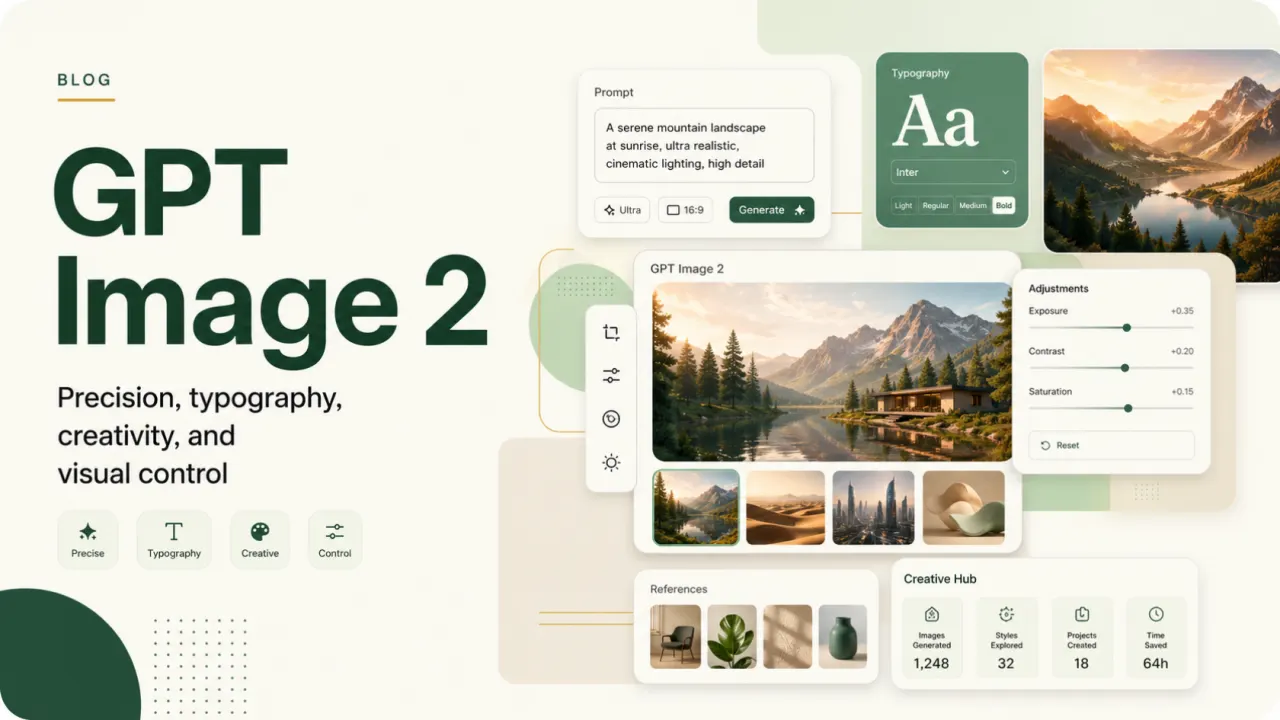
GPT Image 2 is OpenAI's new AI image generator, built to produce sharper, more coherent and more professional visuals. The model stands out for its better understanding of detailed prompts, dramatically improved text rendering and excellent handling of complex compositions.
Whether you're creating marketing visuals, social media content, posters, UI mockups, concept art or visual storytelling, GPT Image 2 delivers noticeably more polished results. In this article we share our tests, the best GPT Image 2 use cases and several ready-to-use prompts you can copy-paste right now.
What is GPT Image 2?
GPT Image 2 is OpenAI's latest text-to-image model, released in 2026 as the successor to GPT Image 1. It's available through the OpenAI API and inside ChatGPT, with a clear focus on three areas:
- Prompt fidelity — the model follows long, detailed instructions instead of cherry-picking keywords.
- Text rendering — titles, slogans, captions and multi-line text come out clean and correctly spelled.
- Composition control — multi-element scenes, UI mockups and layouts hold their structure even with 10+ objects in the frame.
Compared to GPT Image 1, you'll notice fewer hallucinated letters, tighter framing and a more "designer" feel out of the box. It still isn't perfect on photorealistic faces in motion, but for static, story-driven and graphic visuals, it's currently one of the strongest options on the market alongside Nano Banana Pro and Seedream 4.5.
How to write a GPT Image 2 prompt
A good GPT Image 2 prompt is built like a creative brief, not a keyword soup. The model rewards precision — and punishes vague instructions.
1. Lock the subject and intent
Open with what the image is and what it's for: "A cinematic portrait of…", "A vertical city poster for…", "A character reference sheet of…". The first sentence sets the model's mental model.
2. Describe the scene like a director
Lighting, camera angle, framing, color palette, materials, depth of field. GPT Image 2 understands cinematic vocabulary — use it.
3. Quote the exact text
Any text that should appear in the image goes between quotes. Specify language, casing and placement (e.g., "vertical slogan in the lower-left corner").
4. Specify the aspect ratio
Always close with 16:9 for landscape, 9:16 for vertical, 1:1 for square. Without it, the model defaults to a generic shape that rarely matches your platform.
5. Add quality and style anchors
End with anchors like "premium graphic design", "photorealistic screenshot quality", "manga concept art style", "2D cartoon illustration". They tell the model where on the style spectrum to land.
5 GPT Image 2 use cases with ready-to-use prompts
We tested GPT Image 2 across five distinct creative scenarios. Each prompt below is ready to be copied and run as-is. We picked these cases on purpose, because they push the model on different capabilities: lighting, text rendering, complex scene composition, UI design and visual storytelling.
1. Cinematic portrait
This prompt evaluates the model's grasp of light, mood and minimalist composition — the elements that separate a generic AI image from a portfolio-grade render.
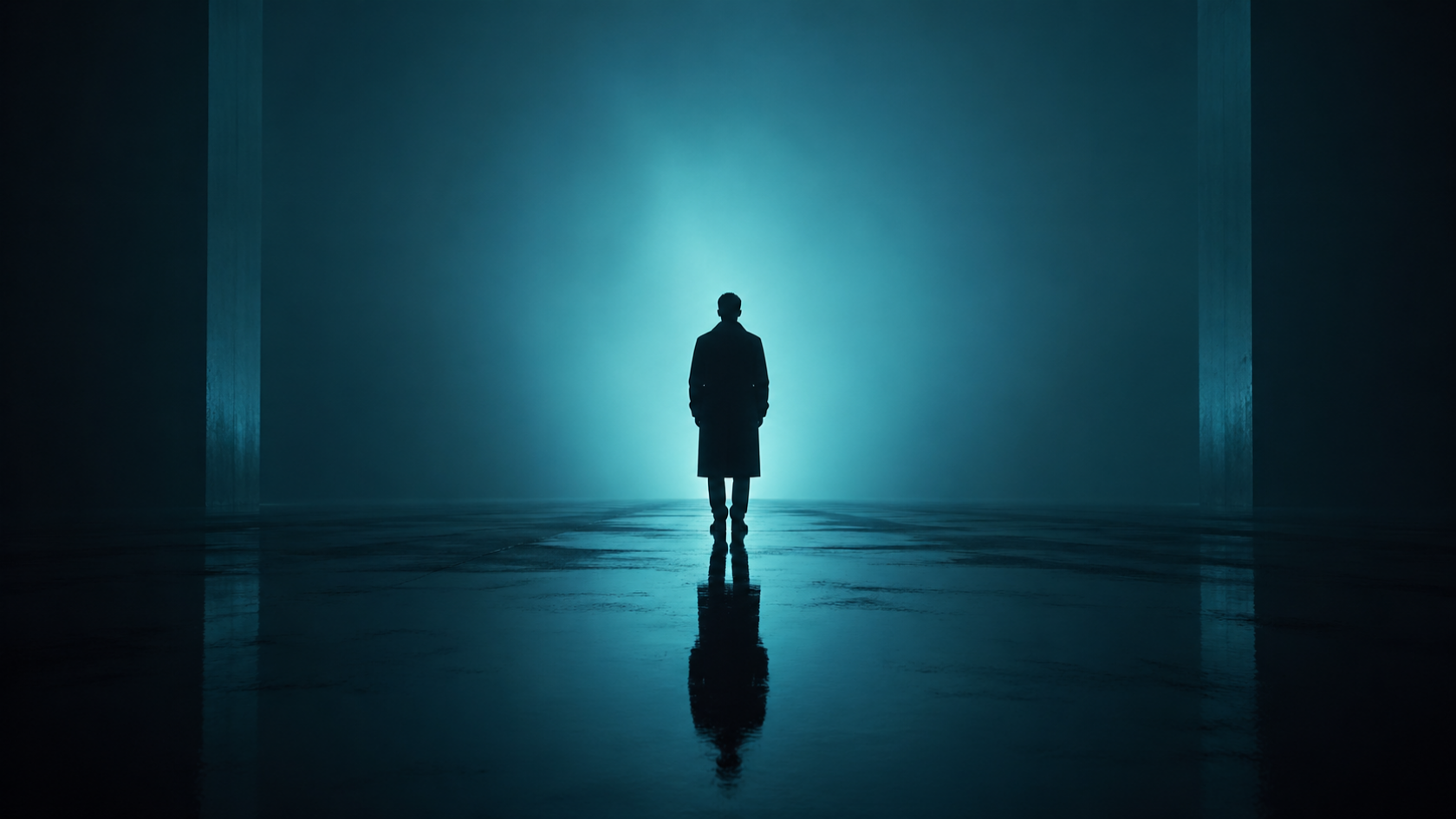
What to look for:
- Clean silhouette edges, no halo artifacts.
- A realistic floor reflection with consistent perspective.
- A smooth gradient with no visible banding.
- A pose that conveys presence — neither rigid nor floating.
2. Urban poster and illustrated design
This test pushes the model on two essential points: text rendering and complex multi-element composition. The prompt asks for legible English typography, more than 10 distinct visual elements and an S-curve layout — all in a single image.
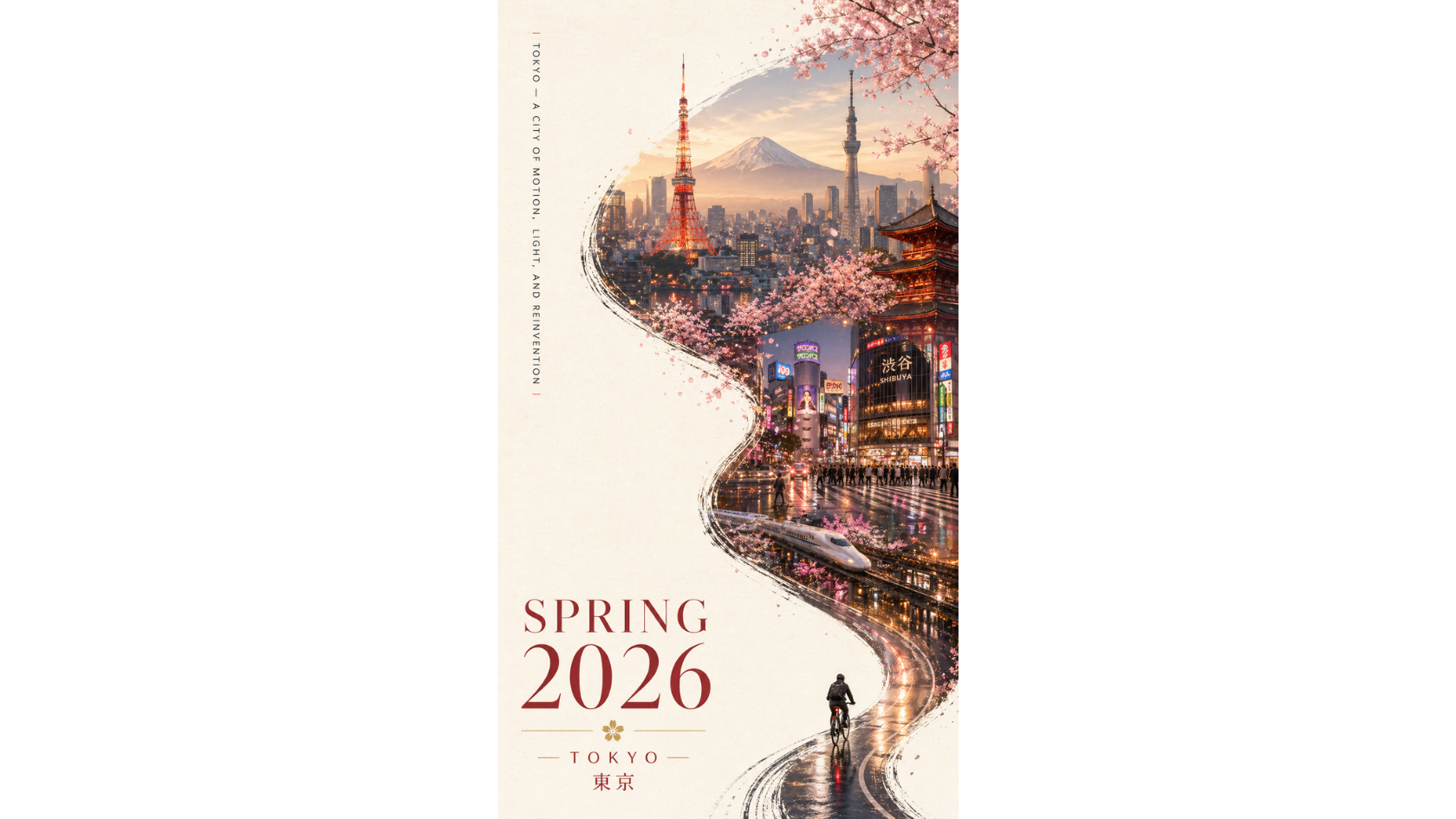
What to look for:
- Every letter of the title and slogan is perfectly legible and correctly spelled.
- The S-curve composition naturally guides the eye from the foreground figure up into the cityscape.
- Landmarks are recognizable, not generic towers.
- Negative space feels intentional and balanced — never empty.
3. Character design and reference sheet
Game developers and concept artists need flawless visual consistency across multiple views from a single generation. This prompt tests GPT Image 2's ability to keep character design intact across front, side and back views.
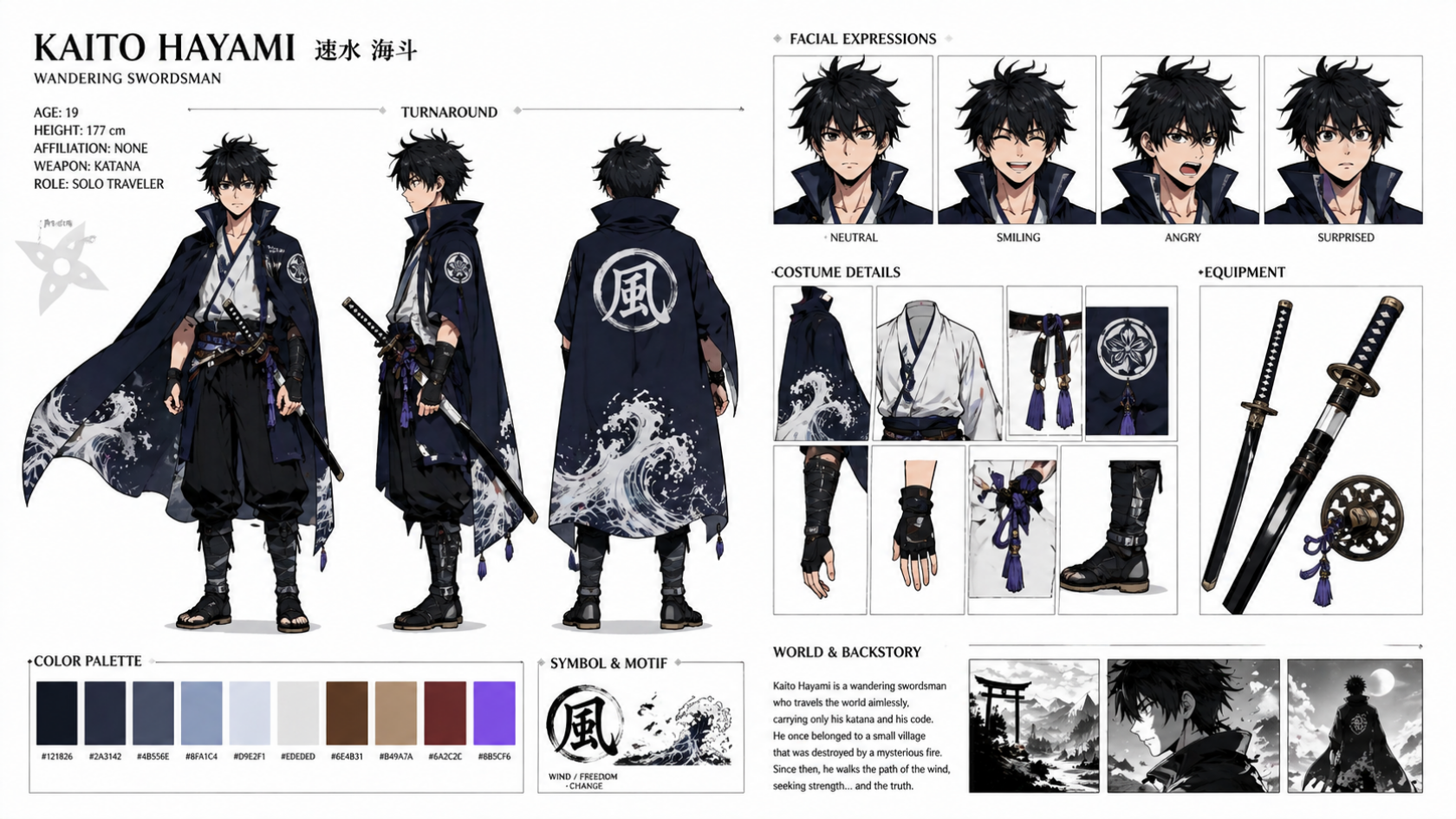
What to look for:
- Face, hair and outfit stay consistent across all three views.
- Expressions only change the face — not the hair or clothing.
- The color palette swatches match the colors actually used in the artwork.
- Annotations and labels are correctly spelled.
4. UI mockup and social media visual
This prompt stress-tests three capabilities at once: interface layout precision, multi-language text rendering and the fusion of an original creative concept. It's also exactly the type of content that performs well on social media — a great real-world test for marketing teams.
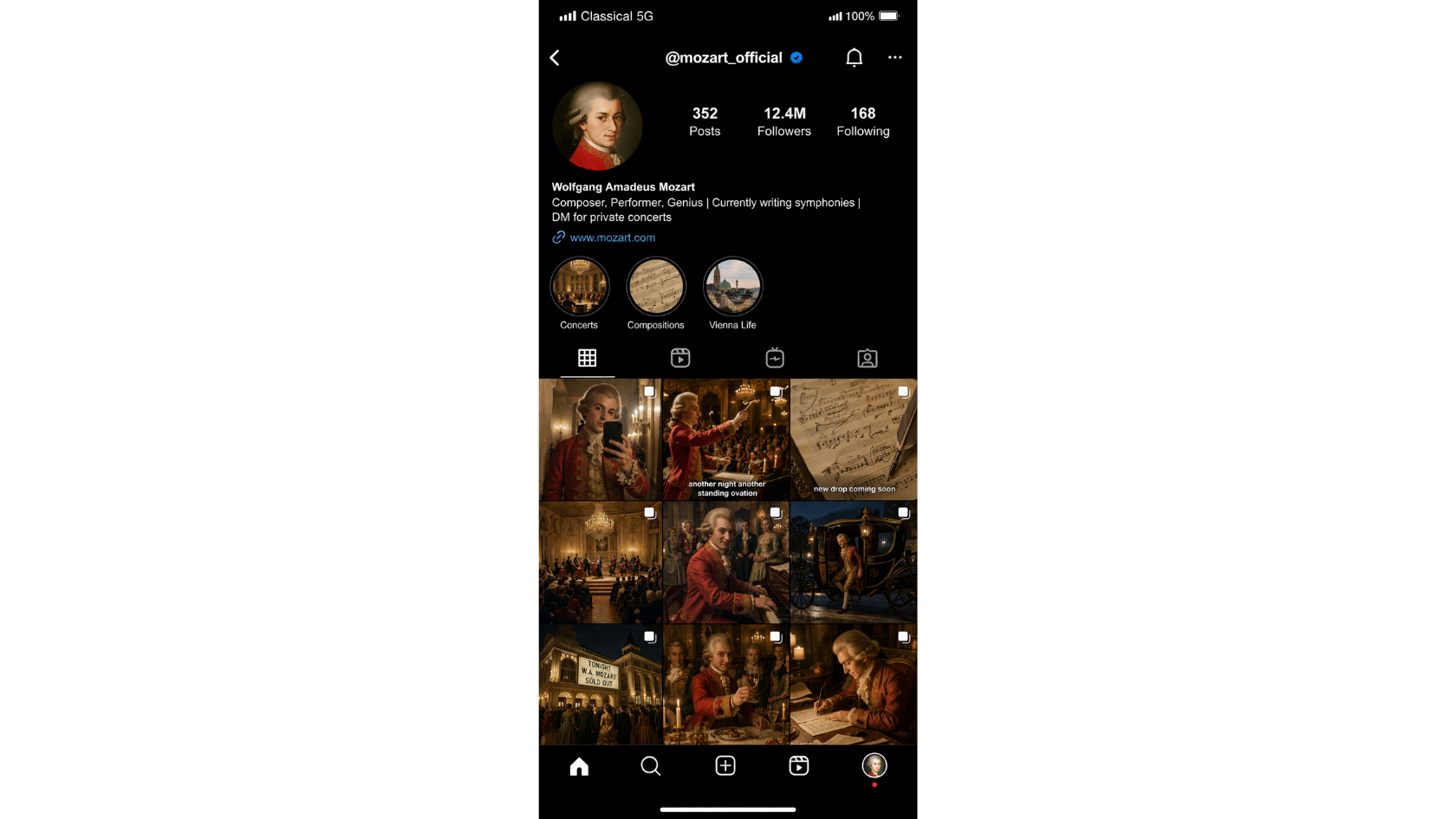
What to look for:
- Instagram UI elements — grid spacing, profile layout, story circles, navigation bar — feel like real iOS screenshots, not stylized imitations.
- Every text element (bio, captions, labels) is readable. The "Classical 5G" line is a deliberate precision test.
- The 9-post grid keeps perfectly proportional squares.
5. Creative and experimental art
Short prompts with a narrative or humorous twist test whether the model can intelligently fill in the gaps you leave open. This prompt gives very few technical instructions and relies on the model's ability to imagine, structure and build a complete scene on its own.
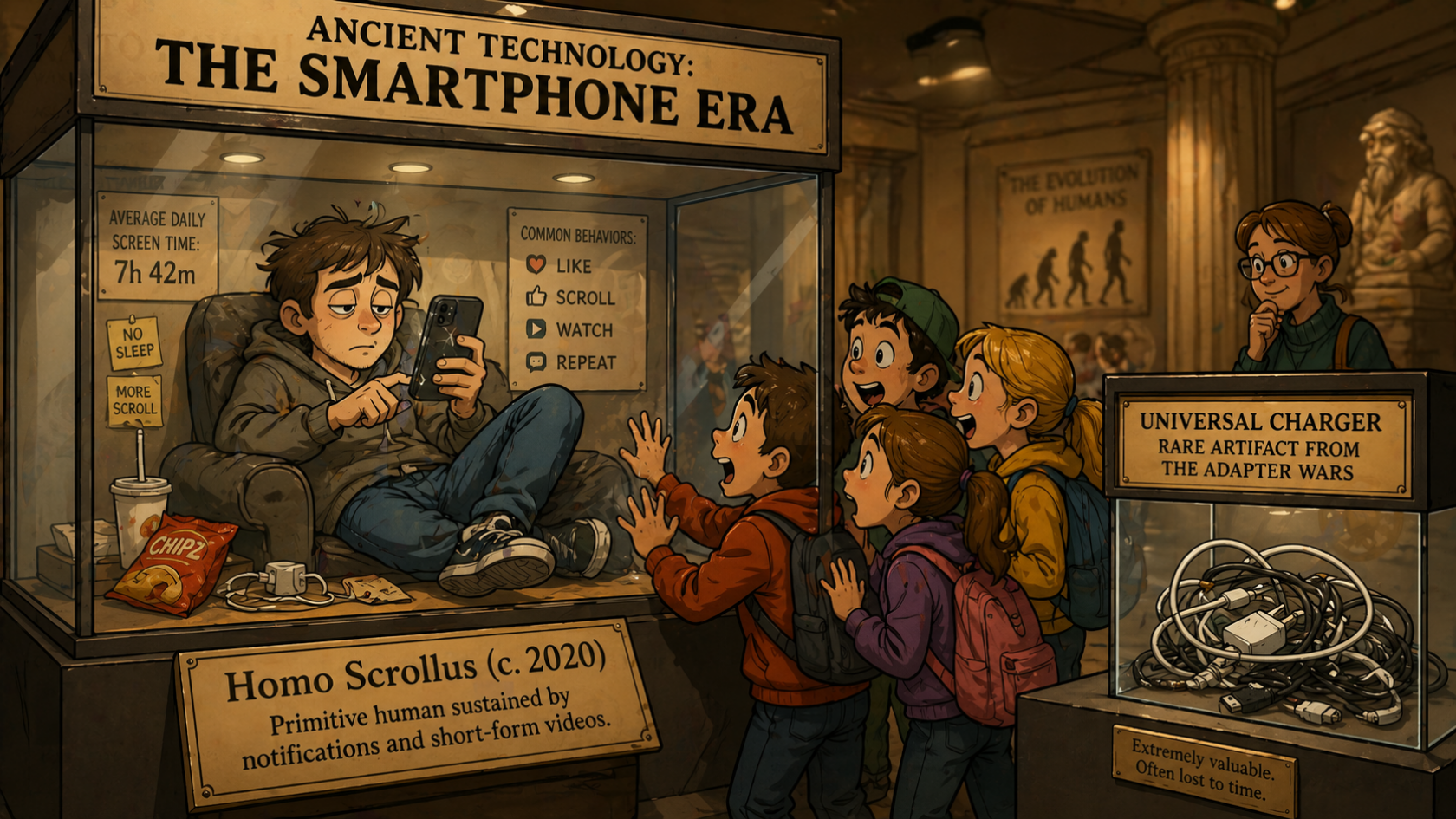
What to look for:
- The humor lands through visual details, not just the text.
- The placard and exhibit title are legible and correctly spelled — a great test for multi-line text at small sizes.
- The cartoon style stays consistent across the whole image, with no photorealistic patches mixed with overly flat ones.
GPT Image 2 vs other AI image models
GPT Image 2 doesn't replace every other model on the market — it joins them with a clear specialization. Here's how it compares.
| Use case | GPT Image 2 | Nano Banana Pro | Seedream 4.5 |
|---|---|---|---|
| In-image text and slogans | ✅ Excellent | ✅ Excellent | ⚠️ Average |
| UI mockups and screenshots | ✅ Excellent | ✅ Very good | ❌ Limited |
| Multi-view character consistency | ✅ Strong | ⚠️ Average | ✅ Strong |
| Stylized / artistic mood | ⚠️ Good | ✅ Very good | ✅ Excellent |
| Photorealistic portraits | ✅ Very good | ✅ Excellent | ✅ Very good |
| Complex compositions (10+ elements) | ✅ Excellent | ✅ Strong | ⚠️ Average |
A practical workflow we recommend: idea → GPT Image 2 (clean structured visual) → Seedream 4.5 (artistic stylization, if needed) → video tool for motion.
Best practices and mistakes to avoid with GPT Image 2
A few habits make the difference between average and consistently great results.
Do
- Always specify the aspect ratio (it's the #1 thing people forget).
- State the asset type and platform upfront ("9:16 Instagram story", "16:9 YouTube thumbnail").
- Quote the exact on-image text and lock the language.
- Give precise constraints — number of elements, repetitions, structure.
Don't
- Vague briefs ("make a cool image").
- Contradictory instructions ("minimalist but visually dense").
- Overloading a scene while expecting a perfectly clean render.
- Forgetting that 80%+ of visuals are viewed on mobile.
Use GPT Image 2 inside Vidrale
GPT Image 2 is now available as a generation engine inside Vidrale alongside Nano Banana Pro, Seedream 4.5, Imagen 4, Kling and others. You can pick it from the model selector when generating images for your video projects, and combine it with Vidrale's storyboard, voiceover and editing tools — without juggling multiple tabs or APIs.
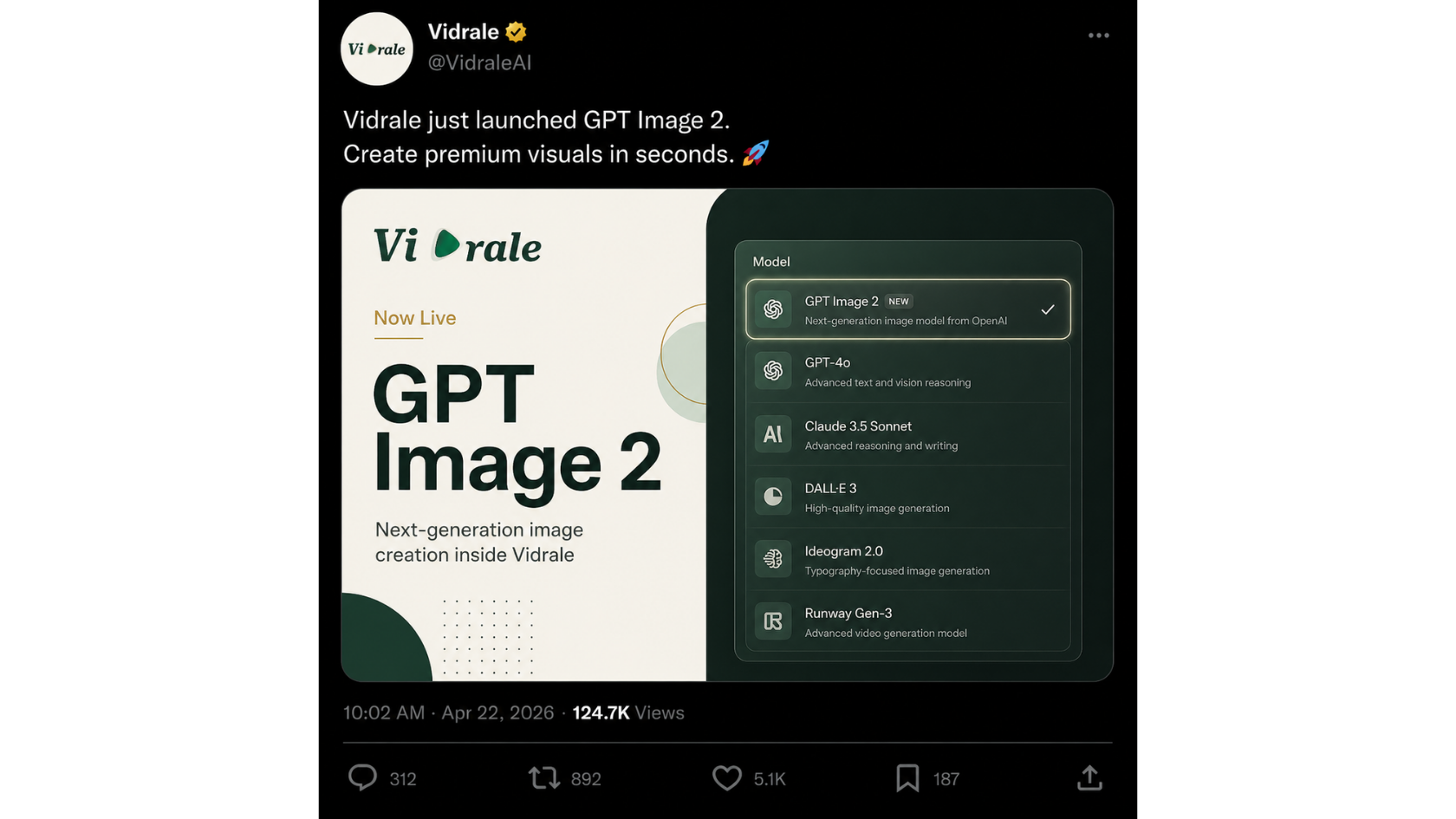
If you're generating visuals for short-form content, faceless videos or social campaigns, plug GPT Image 2 directly into your Vidrale workflow and ship from prompt to final video in one place.
FAQ
What is GPT Image 2 and how is it different from GPT Image 1?
GPT Image 2 is OpenAI's 2026 successor to GPT Image 1. The main differences: significantly better in-image text rendering, stronger prompt adherence on long detailed briefs, and improved handling of complex multi-element compositions like UI mockups, posters and reference sheets. For most graphic and storytelling use cases, GPT Image 2 produces production-ready visuals where GPT Image 1 needed retouching.
Which aspect ratios does GPT Image 2 support?
GPT Image 2 handles the standard formats: 16:9 for landscape (YouTube, presentations), 9:16 for vertical (TikTok, Reels, Shorts, Stories), 1:1 for square (Instagram feed) and 4:5 for portrait social posts. Always state the aspect ratio inside the prompt — leaving it implicit usually leads to a generic shape that doesn't match your platform.
Can GPT Image 2 generate readable text inside images?
Yes — text rendering is one of GPT Image 2's biggest improvements. To get clean results, put the exact text in quotes, specify the language, describe the placement ("lower-left corner", "vertical slogan") and keep it short. Avoid mixing more than 2 fonts in the same prompt and always verify spelling manually after generation, especially on numbers and brand names.
How does GPT Image 2 compare to Nano Banana Pro?
Both models are top-tier in 2026 with overlapping strengths. GPT Image 2 edges ahead on UI mockups, multi-view character consistency and complex layouts. Nano Banana Pro is slightly better on stylized artistic visuals and certain photorealistic portraits. The smart move is to keep both in your toolbox and pick per use case — they're complementary, not interchangeable.
Where can I use GPT Image 2?
You can access GPT Image 2 through the OpenAI API, inside ChatGPT, and through third-party tools that integrate it. Inside Vidrale, GPT Image 2 is available as one of the generation engines for video storyboards and image assets, alongside Nano Banana Pro, Seedream 4.5, Imagen 4 and Kling.
What kinds of prompts does GPT Image 2 struggle with?
The model still has weaknesses on hyper-specific anatomy (hands in unusual poses), photorealistic crowd scenes with hundreds of distinct faces, and very abstract briefs without anchors. If a render comes out wrong, simplify the prompt, put the most important element first, and generate 2–3 variations — small wording changes ("centered text" instead of "big title") often unlock the right result.